
If you run on your own schedule, chasing appointment details back and forth by DM gets old fast. Merlin Booking fixes that. It lets people pick a service, choose a time, and send you a request without leaving your site. You approve the ones that work, and Merlin handles the confirmation email for you.
Here is how it works, from setup to the moment your client gets that "you're confirmed" message.
What Merlin Booking does
Merlin Booking is a Pro feature. Once it's on, a Book button appears on your live site. Visitors request a time to meet with you, and those requests land in your Deals area, where you approve them. When you approve, Merlin emails the client to confirm, as long as they left an email address on the form.
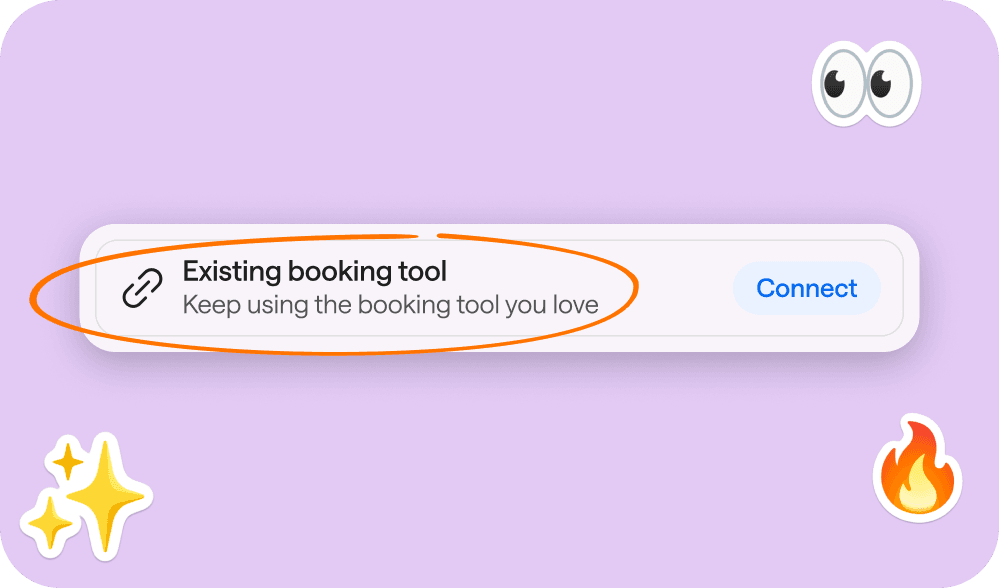
Already using Calendly, Acuity, or GlossGenius? You can connect that instead, and your site's buttons will open your existing booking page. More on that below.
One thing to know before you start: your site needs to be published so visitors can actually book. On a free plan, the booking screen shows an unlock message telling you Booking is a Pro feature.
Setting up Merlin Booking
- Open Suite on merlin.site or in the Merlin app.
- Go to Deals and tap Set up booking, or open Manage Booking.
- Review your bookable services. Merlin can pull these from your Services section the first time. Set your hours and your timezone, then tap Save changes.
- Publish or re-publish your site so the Book buttons show up for visitors.
Here is the step people miss most often: opening the booking screen does not turn booking on by itself. You have to tap Save changes to enable it, then publish.
What booking looks like for your clients
On your live site, a visitor picks a service, chooses a date and time starting from tomorrow, enters their contact details, and submits. That creates a lead for you, and the booking appears as a request until you approve it.
Approving a request
- Open Suite, then Deals (Bookings).
- Open the request and tap Approve. You can keep the time they asked for or set a different one.
Keep your email and app push notifications on so a new lead or request never slips past you.
What happens after you approve
The moment you tap Approve, Merlin emails your client to confirm. The message includes the service, the date and time, and how to reach you. If the client replies, that reply goes to the business email listed on your site, or to help@hey-merlin.com if you have not added one yet.
A couple of details worth remembering. Clients only get the confirmation email if they typed an email on the booking form. And bookings you create yourself in the editor preview do not send an email to anyone, since there is no real client on the other end.
Prefer your own scheduler? Connect an external link
If you already run your calendar through Calendly, Acuity, GlossGenius, or something similar, you can point your site at it:
- Open Suite, then External booking, or choose the external option while setting booking up.
- Paste your booking URL. It needs to start with https://. Save.
- Publish so your site buttons open that link.
With an external link, your visitors go straight to your other tool, which sends its own confirmation. Merlin does not approve those appointments inside Deals, and it does not send the Merlin confirmation email for them.
One rule here: you cannot run Merlin Booking and an external link at the same time. Pick one or the other.
Turning Merlin Booking off
Head to the editor and disconnect Merlin Booking. That switches the built-in tool off and points your Book buttons back toward your contact form. Your services list and hours stay saved, so turning it back on later is quick.
Ready to try it?
Open Suite, set up your services and hours, save, and publish. From there, your clients can book you in a few taps, and you stay in control of every request.